In Three Hours, I Built a Complete Slide-Practice Tool with AI
Before any real presentation, I run through my slides a few times on my own. The point isn’t just to get the flow smooth, it’s to catch where I said something wrong or where I explained something badly. But every time I finish a run-through, the biggest problem is the same: I can’t actually remember what I just said. Whatever I say while practicing is gone the moment it leaves my mouth, and by the time I want to go back and check whether a particular slide came out well, my head is already blank. I can’t even tell whether I got something wrong, let alone where.
The Painful Part Was Having No Way to Replay What I Said
My old approach was honestly pretty dumb: record the whole thing, then force myself to sit through it afterward. But I’d usually last only a couple of minutes before I started skipping around, and by the end I still couldn’t tell what I’d missed.
The basic problem is that if I want to check where I went wrong or where I was unclear, I first need to know what I actually said. Memory alone doesn’t cut it. When I’m practicing, all my attention is on the slides and the flow, and there’s no spare capacity to memorize my own sentences one by one.
The recording is the only thing that lets me go back at all, but a recording on its own isn’t really enough. For a twenty-minute talk, I’d have to listen from the start just to fish out the few sentences I care about. And when I hit a line where I think “that sounded off,” I then have to stop and reconstruct: which slide was I even on when I said that?
Put differently, the recording is one continuous timeline, but my deck is split into discrete slides. There’s no mapping between the two, so I have to stitch it back together in my head. By the time I reach the later parts, I’ve usually forgotten what the earlier slide was about, and going back and forth to cross-reference is exhausting.
What I actually wanted wasn’t “one big transcript.” It was this:
For each slide, the exact words I actually said on that slide.
If I could get that, I could check things slide by slide and never have to replay the whole recording from the top again.
What I Actually Wanted
The requirement is simple, and the rest of the implementation just follows from it. I wanted a structured transcript where every slide holds three blocks:
- [Slide content]: the text on that slide
- [Speaker notes]: the points I had written in the speaker notes for what I meant to say on this slide
- [Transcript]: what I actually said on this slide while practicing
Only when these three fields sit on the same page can I really see where I drifted. AI can compare the gap between “what I intended to say (notes),” “what’s written on the slide,” and “what I actually said (transcript),” and tell me where I skipped something, where I got it wrong, and where I could be clearer.
Why I Built It Step by Step With AI Instead of Grinding It Out by Hand
Honestly, if I had to build this from scratch myself, I could do it, but it would eat several of my evenings. Just the Google Slides API auth flow, parsing out the nested textElements structure inside slides, dealing with the browser-compatibility quirks of MediaRecorder, and then wiring up the Whisper API, each one means more reading docs, hitting edge cases, and debugging.
But to me this is just a “little tool for practicing my own talks.” I didn’t want to pour that much time into it. So instead of telling AI to build a complete app right out of the gate, I first drew out how the data flows, what each stage takes in and what it puts out, before touching anything. Once I had drawn clear boundaries around each stage, each piece turned into a sub-task with a well-defined scope that AI handles easily.
The Overall Architecture
The data flow of the whole thing roughly looks like this:
Most of this is just plumbing. The one hard part is making the recording time line up with the slide numbers. I record two timelines at once, one for “when the user turns slides” and one for “the timestamp Whisper returns for each word,” and as long as those two line up, I can roughly slice each word back onto its slide.
Bringing the Whole Deck Into the Tool: Watch and Record at the Same Time
This tool doesn’t just do recording, it pulls the entire Google Slides deck inside too. I start by pasting a Google Slides link, and the tool fetches the whole deck through the Google Slides API, grabbing each slide’s content and speaker notes in one shot, then pulling each page’s thumbnail for display.
Once you’re in the recording screen, the interface is basically a stripped-down slide player: the current slide’s thumbnail in the middle, with “previous / next” buttons, the current “page X of Y,” a recording timer, and pause/stop controls next to it. So while I’m practicing, I don’t have to open Google Slides separately and keep switching back. I watch the slides, present, and record all inside the same tool, with a rhythm that’s almost identical to actually being on stage.
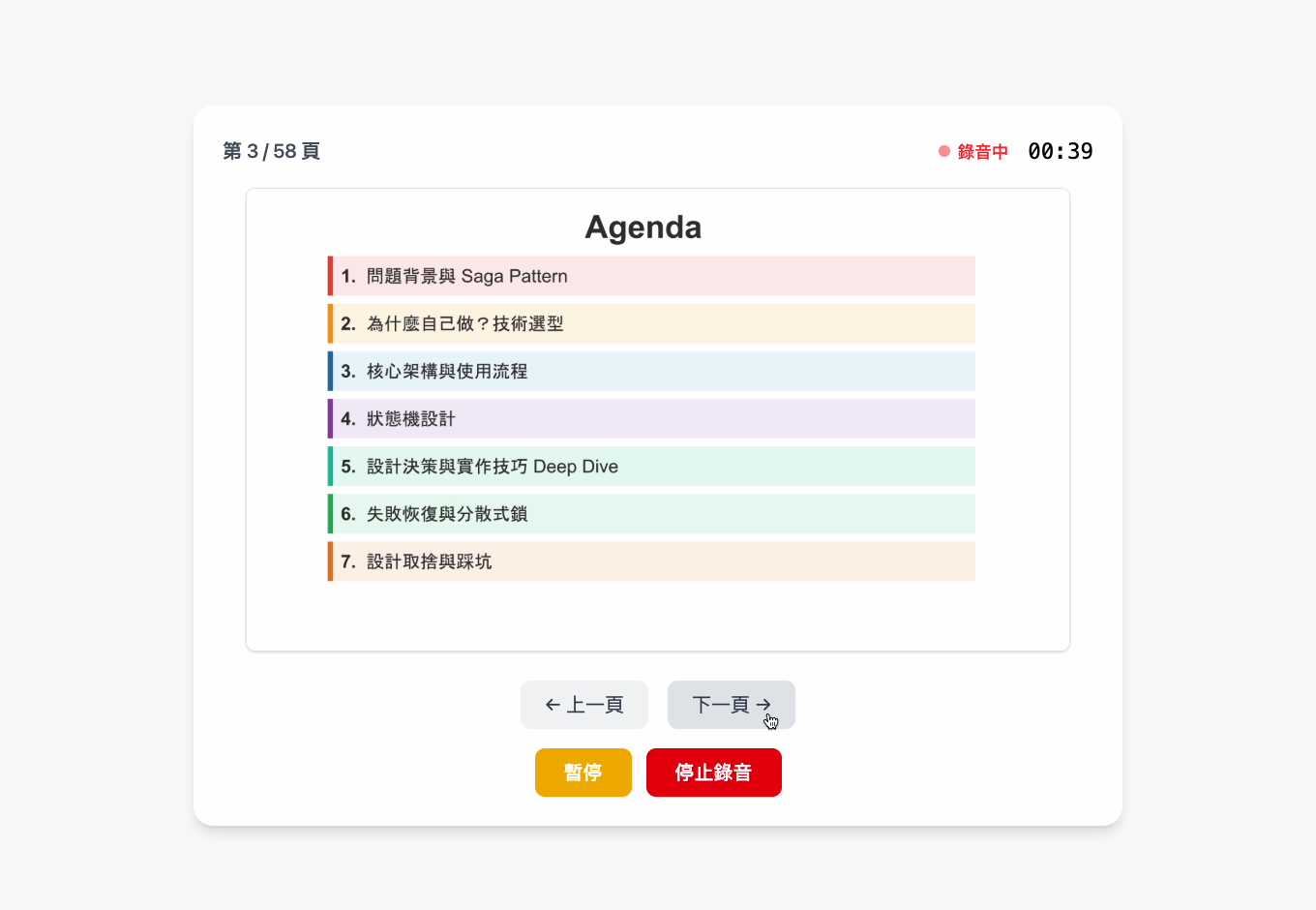
And this design isn’t just about convenience, the whole “per-slide alignment” later actually rests on it. Because “turning the slide” is done by clicking a button inside the tool, hitting previous/next fires an onSlideChange, which is an event I can intercept precisely. That lets the “slide-turn timeline” and the “recording timer” share the same clock, so the two timelines are aligned from the start.
The flip side: if I let users go off and turn slides inside Google Slides themselves, the tool would have no idea what second they flipped to which page, and the whole “use time ranges to slice the transcript back onto each slide” approach would have nothing to stand on. So “bringing the deck into the tool and turning slide changes into events I can record” turned out, in hindsight, to be the single most worthwhile decision in this whole thing.
A few of the technical bits were more interesting than the rest.
1. Aligning Slide-Turn Timestamps With Word-Level Timestamps
Whether the whole tool works at all pretty much rides on this step.
While recording, I log a timestamp every time I turn a slide. In code it’s an onSlideChange that pushes { slideIndex, timestamp } into an array, where timestamp is the “effective elapsed time” from the start of recording to now (in seconds):
const onSlideChange = useCallback((newSlideIndex) => { |
After recording, the audio goes to Whisper (I’m using whisper-1), with response_format: verbose_json plus timestamp_granularities[]=word, so Whisper returns a start / end time for every single word.
With those two sets of data, alignment is just a “range check.” Each slide has a startTime (the slide-turn timestamp where this slide began) and an endTime (the slide-turn timestamp of the next slide, or the total duration for the last slide), and then you string together all the words whose start falls inside that range to get this slide’s transcript:
const slideWords = words |
My talk is in Mandarin, and Mandarin doesn’t put spaces between words, so I just join('') here. The alignment code itself is tiny, but the first time I finished it, the whole thing didn’t actually line up at all. The problem was the pause.
2. When Pausing/Resuming, You Have to Subtract the Paused Time
While practicing I hit pause a lot, to think for a second, take a sip of water, then keep going. The catch is: MediaRecorder doesn’t record audio during a pause, but the wall clock keeps ticking.
If I naively computed elapsed seconds as “now minus start time,” then any pause in the middle would make the slide-turn timestamp overcount by however long the pause was, the whole timeline would drift later, and the alignment would be completely off.
The fix is to keep a totalPausedRef that accumulates the total paused milliseconds, and subtract it when computing the effective elapsed time:
const getEffectiveElapsed = useCallback(() => { |
When you hit resume, you add “how long this pause lasted” into totalPausedRef:
const resumeRecording = useCallback(() => { |
This way the “effective elapsed time” recorded by the slide-turn timestamp matches the actual playback time inside the audio file, and only then do the word timestamps from Whisper line up afterward.
3. Whisper’s Per-File Size Limit and Chunked WebM Upload (Playing It Safe at 24MB)
Once the timeline was aligned, a longer talk surfaced another problem: the recording file is too big to send. OpenAI’s audio transcription API has a 25MB per-file limit; in my implementation I play it safe at 24MB, leaving a little buffer for multipart overhead. A recording blows past that easily, so I have to split it into chunks before uploading.
There’s an easy gotcha here: the first chunk that MediaRecorder produces is the one carrying the WebM container header (the EBML init segment). If I naively slice the later chunks into a new segment and send it off, that audio file is missing its header, so it’s broken and can’t be decoded.
So the key is: every newly split-off segment has to start with that header chunk prepended.
EBML/init segment] B --> C{adding chunk
exceeds 24MB?} C -->|No| D[keep adding to current segment] D --> C C -->|Yes| E[close current segment] E --> F[start new segment
with the header chunk] F --> D G[send each segment to Whisper] --> H[stitch word timestamps
with an offset]
In code it roughly looks like this: when adding the current chunk would exceed the limit, wrap up the current segment, then start a new segment with the header chunk:
const headerChunk = rawChunks[0] |
After transcribing the chunks, there’s one last step: each segment’s word timestamps are counted “from the start of that segment,” so you use an offset (the total duration of all preceding segments) to stitch them back onto one complete timeline:
const offset = totalDuration |
One honest caveat: that first chunk isn’t a pure init segment — it also carries the first second or so of audio, so reusing it as-is is a pragmatic MVP shortcut that duplicates a little audio at each segment boundary. A cleaner version would extract only the header bytes. Still, within the range of my own presentation lengths, this ends up stitching together a word timeline that’s good enough.
What It Actually Looks Like in Use: the Exported JSON
Once alignment is done, you can export to JSON or TXT. I personally use JSON more often, because it’s friendlier to AI agents. The format is structured, every field has clear boundaries, and the agent doesn’t have to parse some plain-text format split by separator lines. It can just read each slide’s fields directly and work with them. The exported structure roughly looks like this: a top level with the talk’s title, the recording time, the total duration, and a slides array, where each slide is one object in the array:
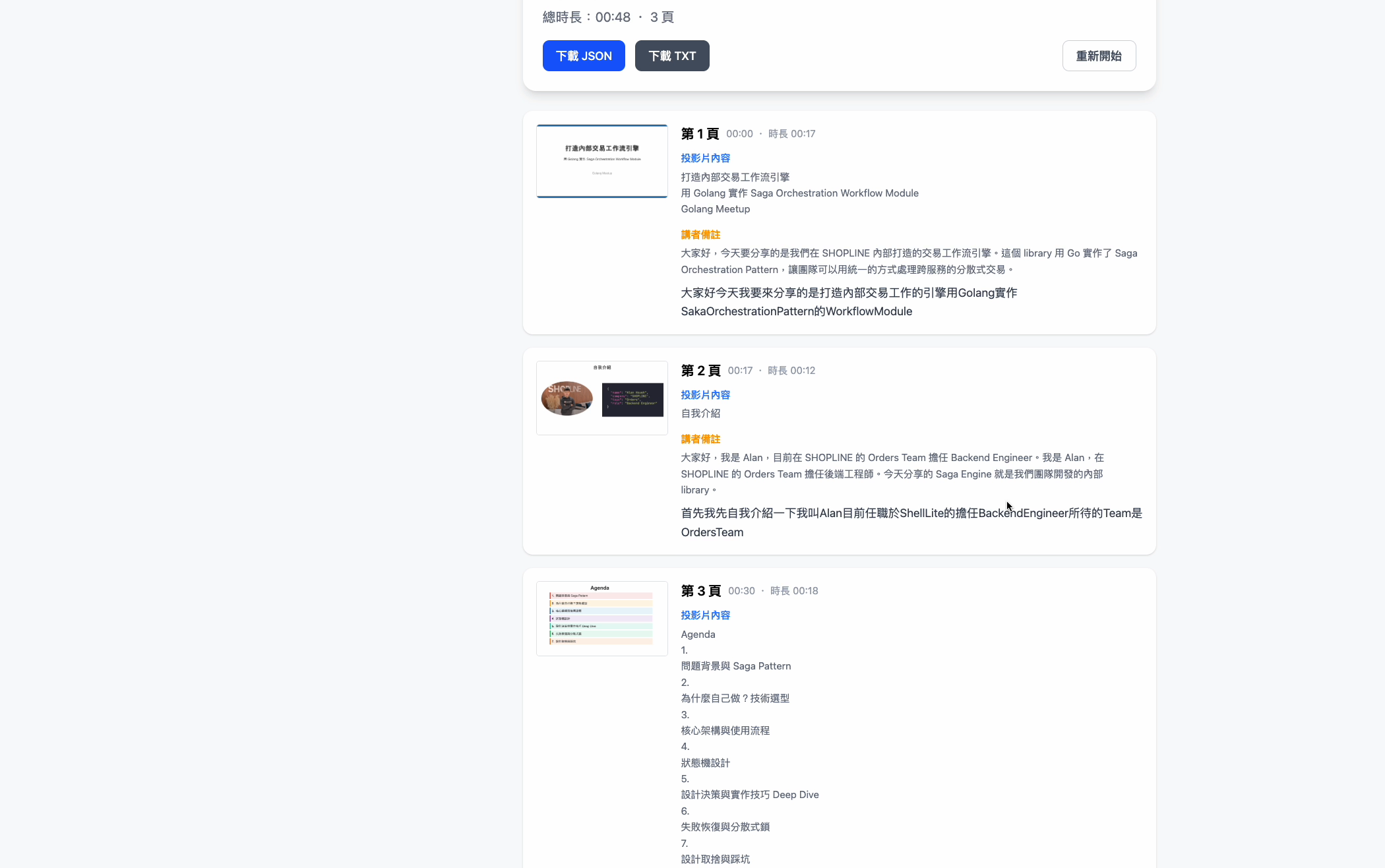
Since the deck I was practicing with was in Mandarin, the sample below stays in Mandarin and keeps the same shape — it’s a representative example, not a real recording:
{ |
To put it in terms a non-Mandarin reader can follow: on this slide my speakerNotes say the key point is “transaction consistency” (交易一致性), but in the transcript I actually said the reason for choosing PostgreSQL was that “its query performance is better” (查詢效能比較好). So the notes and what I said point at two different things, which is exactly the kind of mistake I want to catch.
I take this JSON and hand it to AI with a prompt roughly like this:
Below is the JSON transcript of my slide practice. In the slides array, |
With an example like the one above, AI catches it easily: the speakerNotes say the key point is “transaction consistency,” but in the transcript I actually said “query performance is better,” and that’s a content mistake, because the keywords in the notes and in the transcript clearly contradict each other. That kind of side-by-side comparison is exactly what putting these three fields together is good for.
A Three-Hour MVP, and a Few Repeatable Takeaways
Going from nothing to a working MVP took about three hours, start to finish. If I’d had to build all of this by hand myself, digging through the nested structure of the Google Slides API, dealing with MediaRecorder compatibility, tripping over that WebM header gotcha, it would have taken several times as long. Working with AI to grow the data flow piece by piece let me put my energy into “what do I actually want” instead of “what do I fill in for this API parameter.”
If you want to hack together a little tool like this with AI too, here are the few things I’d actually repeat next time.
1. Break the data flow into stages with clear “input -> output” first, then put AI to work
Don’t just throw the whole thing at AI with “build me a slide-transcript tool.” The first thing I did was slice the flow up myself: load the deck (along with slide content and speaker notes) -> present and record while logging slide-turn timestamps -> send to Whisper for word timestamps -> align using time ranges -> export. Once each stage has a clean boundary, handing it to AI almost never goes sideways.
2. Think through the one critical idea yourself, leave the rest to AI
Whether this tool works at all hinges entirely on one idea: record two timelines at the same time, then align them. AI won’t think of that decision for you. If you hand it off without having thought it through yourself, you’ll usually get back something that “looks like it works but doesn’t actually line up.” My experience: I bring the ideas; AI brings the keystrokes.
3. The first version won’t be perfect, and the real subtleties only show up after you’ve run it and watched it break. That’s when AI is the best debugging partner
Subtracting paused time, and prepending the header when splitting WebM, are both potholes I only hit after actually running things and finding that “the slides didn’t line up” and “the audio file was broken and couldn’t be decoded.” AI won’t necessarily guard against these on the first pass, but once I describe the symptom clearly (e.g. “the split-out file can’t be decoded”), it quickly pins it down to the container header. So don’t expect it to nail everything in one go. Treat AI as a partner who debugs alongside you, round after round.
4. Be clear about “what problem am I solving at this stage,” so the little tool doesn’t grow into a monster that’s never finished
This is an MVP for my own use. What I’m solving is “does this idea even hold up,” not “is this system complete and secure enough.” A lot of the omissions (no backend, no account system) are deliberate trade-offs. For this version I kept it to just validating the idea; turning it into a product can wait. That separation is the only reason it actually got wrapped up.
After finishing this tool, the thing that stuck with me is this: what slowed me down was almost never writing code, it was figuring out “what does this transcript actually need to look like for me to really use it.” If I hadn’t decided up front that “a slide turn is the time-cut point,” AI would probably have just helped me build a generic record-and-transcribe tool, no different from the pile of recordings on my computer that I’ve never once replayed. Next time I practice a talk I’ll just run it through this, and if it feels handy, I might add a small feature later to “line up the same slide across past practice runs side by side,” to see whether I’ve actually gotten any smoother.
The full source of this little tool is on GitHub: https://github.com/AlanSyue/practice-presentation-with-ai. If you’re curious, feel free to use it as a reference or fork it into your own version.